---
title: "Profile settings and notifications"
url: "https://help.clients.app.rydge.fr/en/article/profile-settings-and-notifications"
language: "en"
last_updated: "2026-10-08T09:25:06.189Z"
---
# Profile settings and notifications
### **Profile Settings**
Click the green bubble displaying your initials in the top-right corner of the screen to access your profile settings:
- **My information**: identity, role, mobile phone number, and email address
- **Password**: you can change your password by completing the required fields
- **Legal resources**: [legal notices](https://www.rydge.fr/mentions-legales), [Terms and Conditions](chrome-extension://efaidnbmnnnibpcajpcglclefindmkaj/https://api.rydge.fr/desktop/gtw/contact/api/terms/latest/content?language=fr), [privacy policy](https://www.rydge.fr/politique-de-confidentialite-et-gestion-des-donnees), cookie settings
| ℹ️ **Would you like to update your personal information?** From the **"Entity"** menu, select the **"Users"** tab:
- On the right-hand side of the relevant user's row, click **"..."**
- Click **"User information"** and update the details
- Click **"Confirm"** |
| --- |
### **Notifications**
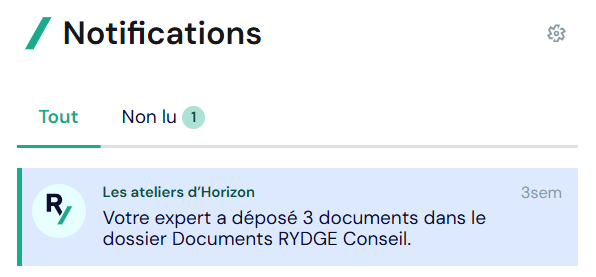
Keep up to date with the latest documents uploaded to your client area by clicking the **bell** 🔔 next to your profile. You can access all your notifications and filter them to display only unread notifications.
#### **Types of notifications**
- **Document uploads**: whenever your RYDGE Conseil contact uploads one or more documents to your client area
- **BI dashboard**:
| **Notification received when :** | **Notification channel** |
| --- | --- |
| A BI dashboard is made available in my client area | 🔔 Notification Center
✉️ Email |
| My BI dashboard is updated | 🔔 Notification Center
✉️ Email |
#### **Notification settings**
| 💡 From the settings, you can receive notifications only for your favorite entities |
| --- |
Open your notifications, select the settings gear ⚙️, and click **"Access notification settings"**. Then choose the type of notifications for which you would like to adjust your alerts.
For example, for documents, you can choose to receive an alert:
- when a document is uploaded to the **Accounting** folder
- when a document is uploaded to the **Payroll & HR** folder
- when a document is uploaded to the **RYDGE Conseil Documents** folder
If you deselect all notification options, you will no longer receive notifications.
### **I can't find the document that was uploaded after clicking the notification. What should I do?**
If you cannot find the document(s) that were previously uploaded, check that you are in the correct folder. If you are, please contact your accountant or **Payroll & HR manager** for guidance on the platform.
If this does not resolve the issue, please open a ticket with our **Customer Support** team.
* * *
If you encounter a problem, don't hesitate to contact your support team
on **+33 9 73 73 30 00**, by email: **relation-client@rydge.fr** or via the help center available by clicking on the “**?**” button and then on the “**SUPPORT**” tab.